REGISTERING YOUR WORKS
Import your Spotify catalogue, select the songs you helped write and complete their registration to activate royalty collection.
This section covers how to register works, how to add co-writers, declare ownership splits, track your submissions and manage your works.
Watch our video below to get started:
1. ADD YOUR SPOTIFY CATALOGUE
You can import works from Spotify once you have completed identity verification and signed your Bridger mandate. Both steps are required to unlock this feature.
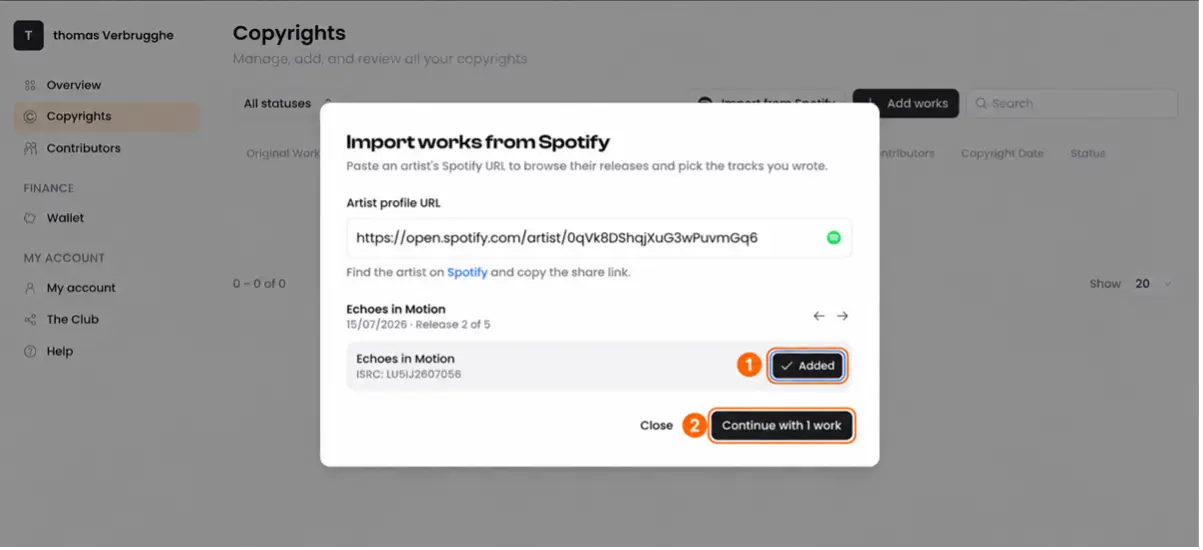
Click Import works from Spotify and paste the Spotify artist profile link into the Artist profile URL field.
Bridger will display the available releases and tracks so you can select the songs you helped write or compose.
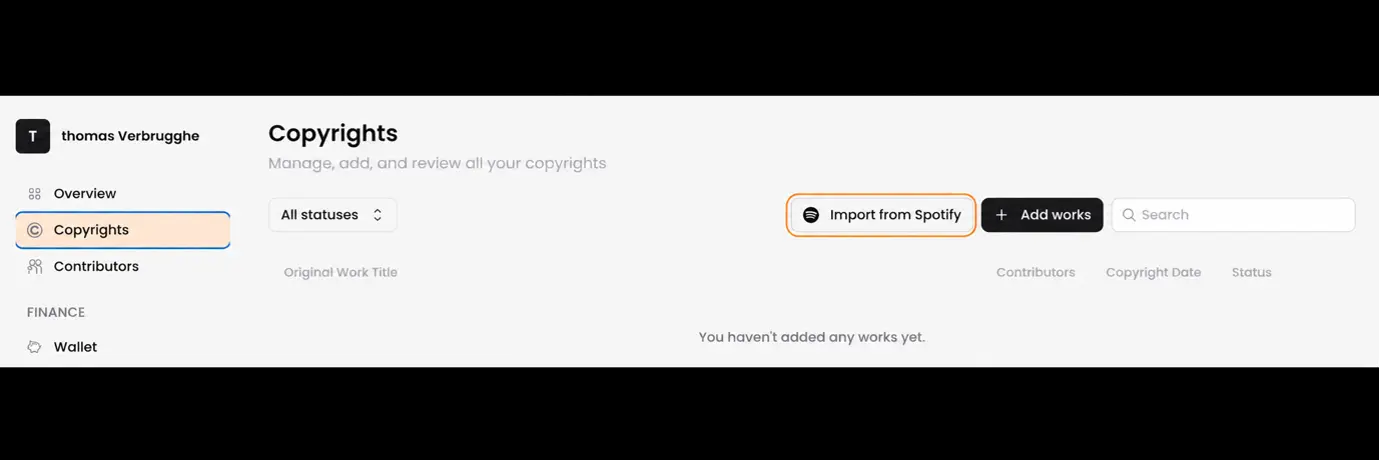
Click Add next to each track you want to register. Once you have selected your tracks, click Continue with the works selected to start registering them.
2. SUBMIT YOUR WORKS
Click Add next to each track you want to register. You can select works individually or use Select all. Once you have made your selection, click Continue with the works selected.
Then, confirm your contribution: Select I’m a writer and/or composer if you helped create the music or lyrics and own a share of the composition. You can then continue with the registration.
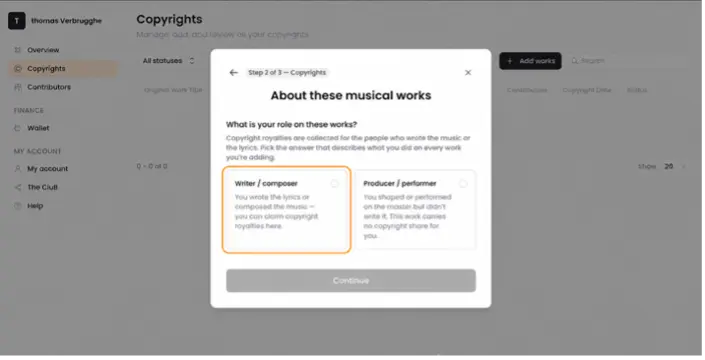
Select I’m a producer or a performer if you contributed to the recording but did not write or compose the song.
A recording contribution alone does not entitle you to songwriting royalties, so you cannot continue registering the selected works through this process.
Bridger Tip:
If your contribution differs between works, register them separately so your answers are accurate for each one.
Now, confirm the originality of your works:
Select Original work if the works are original compositions and do not include someone else’s work, such as a cover, remix, medley or sample.
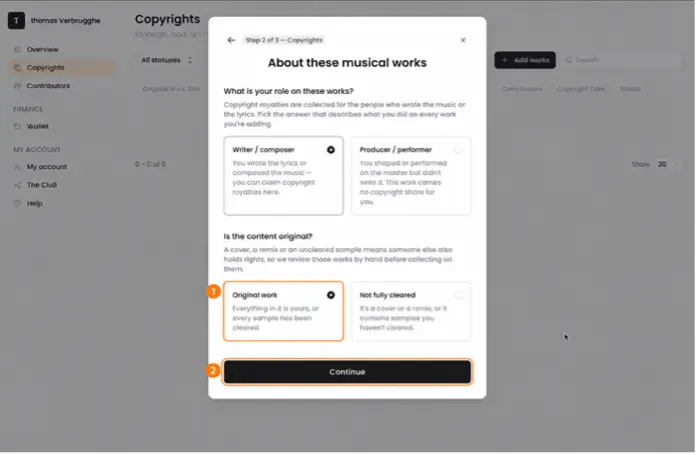
Select Not fully cleared for this content if the works include material whose underlying rights you do not fully control. You cannot continue through the standard registration process with this selection.
Contact support if you need help clarifying your rights or permissions.
Once you have confirmed your contribution and the originality of the selected works, click Next to add any co-writers and define the ownership splits.
3. ADD CO-WRITERS AND DEFINE OWNERSHIP SPLITS
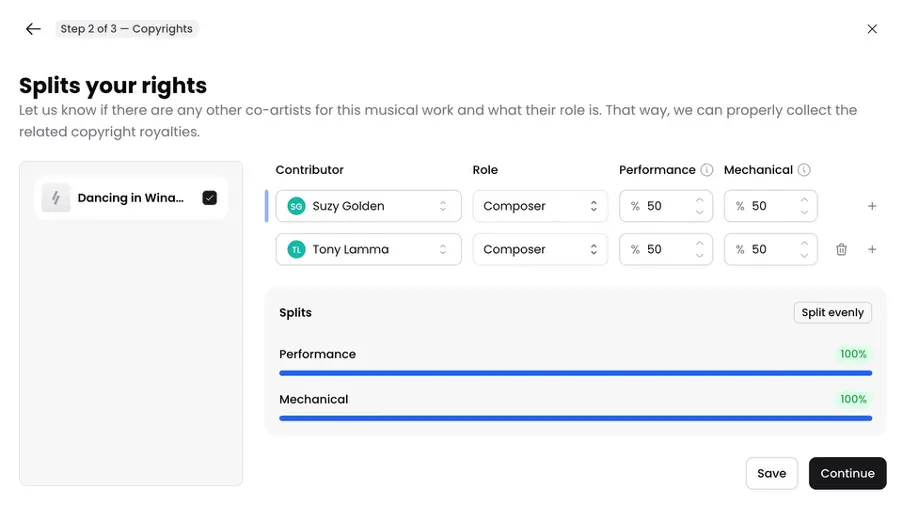
After adding your works, list everyone who helped write or compose each song and enter their agreed ownership shares.
These shares determine how performance and mechanical royalties are allocated between the rightsholders. Agree the percentages with your co-writers before submitting.
How do I add co-writers?
Click the small + button to add a contributor. Select someone from your existing contributors list or create a new entry using their full legal name.
Choose their role
Songwriter, Author or Composer, and enter their ownership percentages for Performance Rights and Mechanical Rights. Repeat this for every co-writer.
If you wrote the work alone and own all the songwriting rights, enter 100% for yourself in both categories. If you wrote it with others, the combined shares must total 100% for performance rights and 100% for mechanical rights.
Click Next, review all names, roles and ownership shares, then click Submit to send the work for review and return to your works dashboard.
Bridger Tip:
If your contributors and you agreed on equal splits, select Split evenly. This will automatically split shares equally across contributors.
How do I declare my ownership share?
Enter the percentage you own according to your agreement with the other writers or rightsholders.
For example, if you and another writer each own 50%, enter 50% for yourself and 50% for your co-writer. Enter the agreed percentages separately for performance and mechanical rights, as these may differ. Include all ownership shares, even where another organization represents a co-writer’s share.
Can I register a work with multiple songwriters?
Yes. Add each songwriter, composer or lyricist, select their role and declare their agreed ownership share. Use each person’s full legal name and make sure the shares total 100% in each rights category before submitting.
What if my co-writers belong to another rights organization?
You can still register your own eligible share with Bridger. Add your co-writers and accurately declare their shares and affiliations where requested.
Bridger manages the rights you authorize it to collect, while your co-writers can keep their shares with their existing organizations.
Two organizations cannot claim the same rights for the same rightsholder’s share in the same territory at the same time, as this creates conflicting claims and can delay royalty collection and payments.
4. UNDERSTAND MUSICAL WORK STATUSES
Each work in your Bridger account has a status showing its progress. Below is an overview of each status mentioning whether you need to take action.
Status | Description |
Draft | Complete the songwriter details and splits, then submit your work. |
Submitted | Your work is waiting for review. |
Missing Information | Check your email for the details or corrections needed. |
Co-writers approving | Your co-writers need to approve their splits. |
Active | Your work registered in CIS-Net and collecting royalties. |
Dispute | A co-writer declined the splits, so you need to agree on the correct shares. |
Not Original | Your work includes existing material, so contact support to clarify your rights. |
Rejected | Check your email for the reason your registration was rejected. |
Duplicate | The same work was submitted twice. |
Take Down Request | Your withdrawal request is awaiting completion. |
Take Down | Your work has been withdrawn, with the status updated at the start of the next quarter. |
If you have any questions about your work’s status, feel free to contact us. We’ll be happy to clarify.
HOW TO RESUBMIT A MUSICAL WORK
Each work in your Bridger account has a status that shows where it is in the registration process.
If a submitted work moves back to Draft or is marked as Missing Information, check your email for the reason and the action you need to take.
Why was my submitted work moved back to Draft?
Your work may have been moved back to Draft because a contributor was listed more than once or because someone credited on Spotify was missing from your submission. Check your email to see what needs correcting.
If a contributor was listed twice, keep a single entry for that person. Include all their roles, such as author and composer, and enter their correct mechanical and performance ownership shares. If you are the sole writer and owner, enter 100% for both shares on your contributor entry.
If a contributor credited on Spotify is missing, add them with their role and the agreed ownership shares. If you think the Spotify credit is incorrect, reply to our email so we can clarify it with you.
Once you’ve made the corrections, resubmit the work for review.
1.Find the work in your catalog.
2.Click the three dots (⋮) next to the work and select Edit.
3.Edit the contributor entry and keep one entry for each person.
4.Check that the remaining entry includes the correct roles and ownership shares.
5.Resubmit the work so our team can review it again.
Why is my work marked as Missing Information?
If your email asks about AI, our review flagged that AI may have been used to create or edit the track. We need to clarify whether and how AI was used before we can approve the work.
Reply to the email you received or open a ticket in the Bridger Help Center to confirm whether you used AI. If you did, tell us what it helped create or edit, such as the lyrics, melody, vocals or instrumental. If you used AI only for mixing or mastering, mention that in your reply.
Our team will review your response and let you know what happens next. If we move the work back to Draft, you can resubmit it for review.